This page by David Papkin contains useful Linux links
Best Linux Distributions That are Most Suitable for Beginners
10 Best and Most Popular Linux Desktop Environments of All Time
The Difference Between Fedora, Redhat, and CentOS
What is the relationship between Fedora and Red Hat Enterprise Linux?
Red Hat and the CentOS Project Join Forces to Speed Open Source Innovation
Understanding the Color Code of Linux files
GNU General Public License (GPL) v2.0
Is Linux kernel free to modify?
https://wiki.centos.org/FAQ/CentOS7
How to change runlevel on Centos 7
Learn Linux, 101: Runlevels, boot targets, shutdown, and reboot
Check what Debian version you are running on your Linux system
Setup Local Yum Repository on CentOS / RHEL / Scientific Linux 6.4
Backup
55187 Linux Backup lab by David Papkin
Firewall
https://phoenixnap.com/kb/iptables-tutorial-linux-firewall
CentOS / Redhat Iptables Firewall Configuration Tutorial
Ubuntu Iptables: How to Control Network Traffic Using iptables?
Graphical Admin tools
How to Install Webmin on CentOS 7
How to Install Latest Webmin on Debian 10/9/8
Web-based interface for system administration
Monitoring
How To Check For Open Ports in Linux With netstat, lsof And nmap
See Bandwidth Usage Per Process With Nethogs Tool
How to Monitor Network Traffic using nethogs
NetHogs – Monitor Per Process Network Bandwidth Usage in Real Time
Networking
What happened to eth0? Predictable Network Interface Names
How can I change the default “ens33” network device to old “eth0” on Fedora 19?
Change default network name (ens33) to “eth0” in Centos7/RHEL7
How to change a network interface name on CentOS 7
Patching
Ultimate guide to linux patch management
Patch Management Best Practices
10 Linux Hardening & Security Best Practices
40 Linux Server Hardening Security Tips [2021 edition]
Software packages
How To Set Up Local Yum Repositories On CentOS 7
CentOS / RHEL : How to create and host yum repository over httpd
Configuring Yum and Yum Repos (REDHAT Docs)
Storage
GRUB 1 bootloader – Full tutorial
GRUB 2 bootloader – Full tutorial
Understanding File System Superblock
Linux LVM Logical Volume for CentOS 7 / RHEL 7
You can monitor RAID devices multiple ways as in:
$ sudo mdadm --detail /dev/md0
$ cat /proc/mdstat
One can also use mdmonitor which requires configuring /etc/mdadm.conf.
The command:
$ sudo mdadm --detail /dev/mdX
will show the current status of the RAID device /dev/mdX. Another way to do this is to examine the /proc filesystem:
$ cat /proc/mdstat
Q
How to list logical device in Logical Volumes in lv012?
A
lvdisplay -v /dev/vg00/lvol2Q
How to check a physical volume that is using Logical Volume Manager?
A
pvdisplay /dev/ssd3
User Mgmt
Assorted
GNU General Public License (GPL) v2.0
Is Linux kernel free to modify?
How to Configure ACL(Access Control Lists) in Linux FileSystem
Q & A
Q How to check resource usage for a server twice per hour?
A vmstat 1800 2
Q How to tell the status and current Raid level of your Linux software RAID array?
A
sudo bash -c mdadm –detail –scan
cat /proc/mdstat
Q Hw to check logical devices in
Q How to show the usage of process that are consuming network bandwidth?
A
a) You can use the nethogs utility.
ex nethogs -a
or
nethogs -i ens33 or whatever interface you want to get usage stats from.
b) you can use vnstat utility
vnstat -i ens33
vnstati -s -i ens33 -o vnstatreport.png
Q How to know what ports a server is listening to?
A lsof -i -P -n | grep LISTEN
Q How to see what active connections from the Internet?
A netstat –listen
Q How to use iptables
a) Display Your Firewall status
iptables -L -n -v
b) Display firewall with line numbers
iptables -n -L -v –line-numbers
c) Display INPUT or OUTPUT chain rules
iptables -L INPUT -n -v
iptables -L OUTPUT -n -v
d) Stop / Start / Restart the Firewall
service iptables stop/start/restart
e) Drop all incoming / forwarded packets, but allow outgoing traffic
iptables -P INPUT DROP
iptables -P FORWARD DROP
iptables -P OUTPUT ACCEPT
iptables -A INPUT -m state –state NEW,ESTABLISHED -j ACCEPT
iptables -L -v -n
Security
Linux System Administration (SF)_AR_V2.0
Linux System Administration (SF)_LG_Supplement_V2.1
6 Steps to Assess your Network Security
Follow these six steps to assess the vulnerability of your network:
Step 1: Identify and understand the way your business is organized and operates
- Most businesses rely on collaboration between representatives from their internal business units, legal teams, and finance departments to coordinate with IT professionals regarding their exact network needs. Consider issues such as client or customer privacy, regulatory compliance, business processes, and competitive positioning within your industry.
Step 2: Locate the applications and data that are used during the business process
- Identify which of these are sensitive and what information is at risk in the event of a privacy breach.
Step 3: Search for hidden data sources that may allow easy access to secure information
- This is especially important if there is cloud-based access to private data or access across multiple platforms, including smartphones and tablets.
Step 4: Identify both virtual and physical servers that run applications necessary for your business operations
- These servers may not be protected and may allow access to sensitive information without you knowing it.
Step 5: Keep track of what security measures are already in place
- Your network protection may already include specific policies, firewalls, virus detection, VPNs, disaster recovery, and encryption. It’s important to understand the capabilities of your current security measures in order to properly address any vulnerabilities.
Step 6: Scan your network for vulnerability
- The results of this scan will give you confirmation of your network’s security. Should a virus or vulnerable area be identified, you will need to develop a network security strategy, possibly with the help of an MSP.
- Step 1: Identify hazards. Examples of common hazards which can lead to musculoskeletal disorders (MSD) …
- Step 2: Assess the risk. …
- Step 3: Control the risk. …
- Step 4: Review risk control.
Threat Modelling techniques
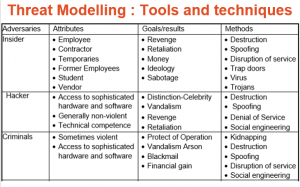
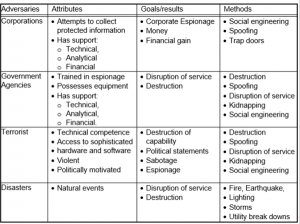
Threat Modeling: 12 Available Methods
STRIDE Threat Modeling (Developer Focused)
STRIDE stands for Spoofing Tampering Repudiation Information Message Disclosure Denial of Service and Elevation of Privilege. Microsoft’s threat modeling methodology – commonly referred to as STRIDE – aligns with their Trustworthy Computing directive of January 2002.[4] The primary focus of that directive is to help ensure that Microsoft’s Windows software developers think about security during the design phase.
P.A.S.T.A. Threat Modeling (Attacker Focused)
The Process for Attack Simulation and Threat Analysis is a relatively new application threat modeling methodology.[3] PASTA threat modeling provides a seven-step process for risk analysis which is platform insensitive. The goal of the PASTA methodology is to align business objectives with technical requirements while taking into account business impact analysis and compliance requirements. The output provides threat management, enumeration, and scoring.
The Visual, Agile, and Simple Threat modeling (VAST) methodology was conceived after reviewing the shortcomings and implementation challenges inherent in the other threat modeling methodologies. The founding principle is that, in order to be effective, threat modeling must scale across the infrastructure and entire DevOps portfolio, integrate seamlessly into an Agile environment and provide actionable, accurate, and consistent outputs for developers, security teams, and senior executives alike.
Trike Threat Modeling (Acceptable Risk Focused)
IS Standard and Frameworks
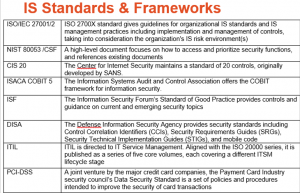
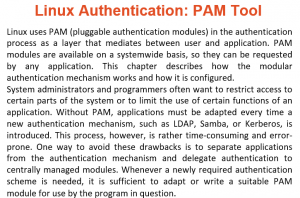
Linux Authentication: PAM Tool
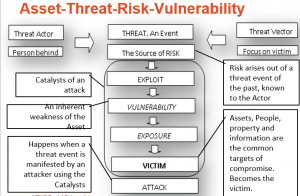
Asset Threat Risk Vulnerability
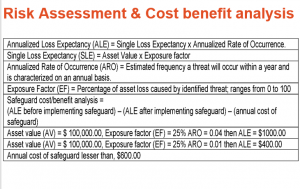
Risk Assessment and Cost Benefiyt Analysis
Q
What are some Risk Identification tools and techniques?
A
Risk Identification tools and techniques
Q
What is CIA Triad?
A
Q
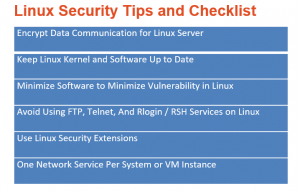
Name some Linux Security Tips and Checklist
A